Add Product or Edit Product
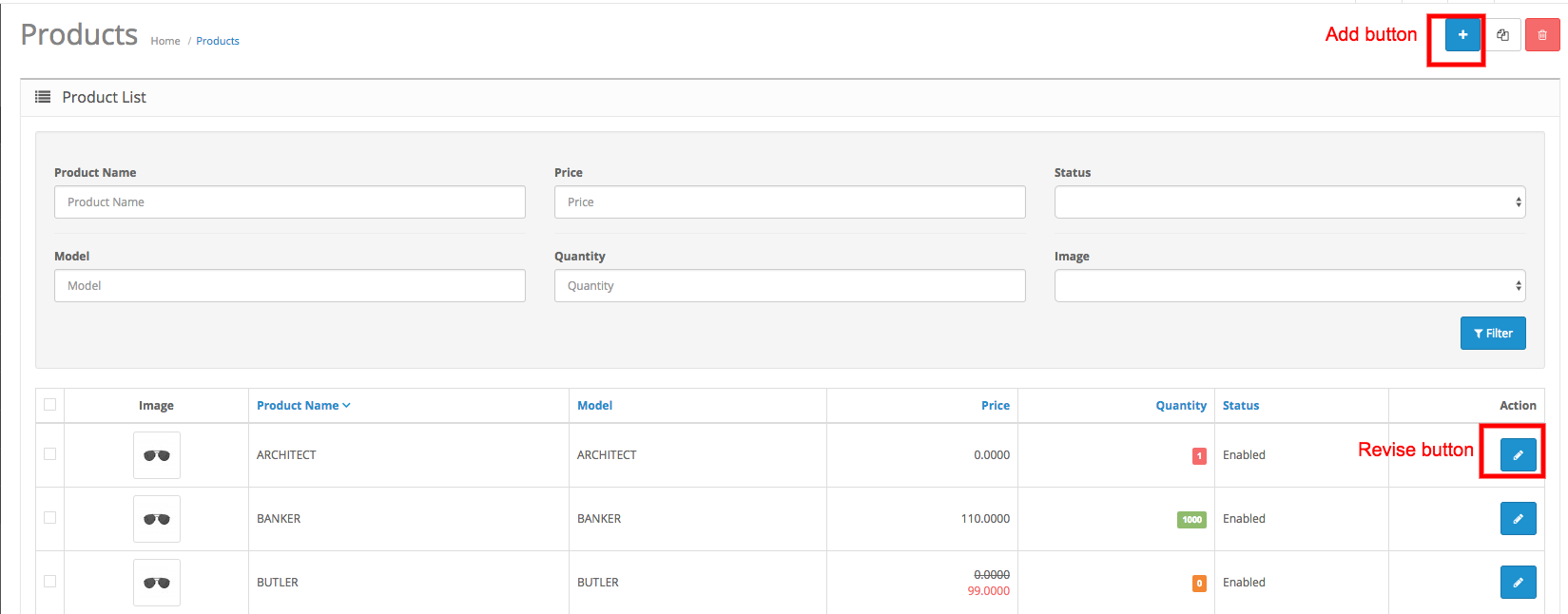
Enter: Catalog > Products
General Tab
The format of the General tab is identical to the General tab when creating a product category, with the addition of the Product Tags feature:
- Product Name
- Meta Tag Description: A summary to describe the product page to search engines.
- Meta Tag Keywords: Similar to meta tag description, but asks for a single keyword to describe the product.
- Description: Text that will describe this product on the product page, to be viewed by the customers in the store front of the shop.
- Product Tags: A tag to describe the product to the customers. If a customer types in this tag in the search box found in the header, the product will be displayed in the search results.

Data Tab
The data tab includes all the product criteria that will be included on the product page in the store front for customers to view:
 Fill in the spaces above with the following information:
Model: create a model number for the product using a combination of letters and numbers. (required)
SKU (stock keeping unit): a random code for the product.
UPC (universal product code): the product's unique barcode.
Location: where the product is located.
Price: set a price for the product.
Tax Class: select a tax class category on this product that was made Settings > Localisation > Tax Classes. This will apply the tax in the checkout for the product. Select "None" if taxes will not be applied to this product.
Quantity: The total amount available in the store for this specific product.
Minimum Quantity: the minimum amount of product a customer must reach to add that product to their Shopping Cart.
Subtract Stock: "Yes" will subtract stock from the quantity of the product (Ex: If there are 100 computers, and a customer buys 2 computers, Subtract Stock will change the quantity to 98).
Out of Stock Status: select "Out of Stock", "In Stock", "2-3 days", or "Preorder" as the message shown on the product page when the product's quantity reaches 0.
Requires Shipping: If the product requires shipping, select "Yes". If not, select "No".
SEO URL: create a keyword for search engine optimization of this product. It will be seen in the URL of the product page. Therefore, the keyword created must be unique for every product.
Date Available: the date when this product will become available for purchase.
Dimensions: enter the length by width by height of the product if there are dimensions to include.
Length Class: determines the metric units for the dimensions above.
Weight: Enter a number for the weight.
Weight Class: Specify the units of weight for the number entered into "Weight".
Status: Enabling makes the product publicly available in the store. Disabling allows the product to be edited in the administration , but hides it from the store front .
Sort Order: When the product is sorted in a list, a number assigns it a priority. A product with a sorting order or 2 will be placed higher than a product with a sorting order of 3, but lower than a product with a sorting order of 1.
Links Tab
The Links tab specifies which pages OpenCart will show the product on:
Manufacturer: Selecting the product's manufacturer will place the product on the manufacturer's page. Select manufacturers can be viewed on the home page if added to the manufacturer banner.
Categories: Check the categories that the product will be placed into. The product will be listed on the category's page in the store.
Filters: Select the filters to be applied to this product if your Filter module is enabled. See Filters for more information.
Stores: Check which stores will sell this product. Clicking "Default" applies if there is only one store to be managed.
Downloads: If the product is a downloadable product, select the file that will be included with the purchase.
Related Products: In this space, type any related products for this product. These products will be displayed on that product's page for the customer to view. When typing in the space, a drop down box will appear with related products.

Attribute Tab
Attributes are the specifications that are compared between products in the Product Comparison.
For example, if a customer wanted to compare monitor size of a computer monitor with another product with a monitor, we could create an attribute for the product. Under "Attribute" we would call it "Monitor size"; in the Text box area we would type the dimensions of the monitor of that specific product, and click "Add Attribute". See Attributes for a more in depth explanation of attributes.

Option Tab
Options are extra selections that a customer can make on the Product page before adding the product to the shopping cart. The Option Values were previously created in the Options section under Catalog. In this section any option can be added, such as "Large". To subtract from the quantity every time a product is purchased with this option, you can select "Yes" under "Subtract Stock". An increase of price can be added to the option value, points, and weight. Click "Add Option Value" to assign that information to that specific option value. You can click "Remove" to erase the option value. See Options for a more in depth explanation of the options feature.

Special Tab
The Special tab is identical to the Discount tab, except that this offer will be considered a special, not a discount. Fill in the customer group, quantity, priority, price, date start, date end.

Image Tab
The images tags let the administrator add additional product images to the product page. The main image was already uploaded in the Data tab of Products, so keep in mind these images will be included below that main image on the product page. You may click "Add Image", then "Browse" to select an image from the Image manager. Assign a number for sorting order. "1" will make it the first additional image, while every descending sorting number will follow it. The image above is an example from a product page in the store front. The large main image was added in the Data tab. The images above were added in the "Image" tab, with the farthest top left assigned as 1, and the following images assigned a lower priority.
